When Good Hardware That’s Never Supposed to Fail Goes Bad

When you work with computer hardware on a regular basis, building machines and swapping components in and out, you start to see patterns of hardware failure. Generally most hardware is reliable, but you’ll see more failures with components related to movement, power, and heat. Hard drives, system fans, power supplies and optical drives seem to have the highest failure rates, but video cards are failing more often than they used to as they run hotter, faster, and need more cooling. Things you don’t see spontaneously fail very often include CPUs, RAM, motherboards, and cables – sure, they can fail, but they usually require “help” from the owner or local power outlet.

Imagine my surprise when this week I had not one, but two bizarre failures of hardware that I’d never expect to fail. I booted up my Fujitsu P7010 laptop, a little 10.6″ screen job, that has 1 GB of RAM (2 x 512 MB) that I installed over a year ago. It’s run fine since then, but this week when I booted it up Vista wouldn’t load – I’d get a blue screen of death and an error related to memory. Because I had been running this hardware for so long (the laptop is a bit over two years old now) hardware failure was the furthest thing from my mind. I ran the Vista repair process (which is quite impressive) because that’s what the OS instructed me to do, but that didn’t work so I figured I’d run memtest86 and see if something was wrong. Below is a photo of what I saw (hint: red is bad).
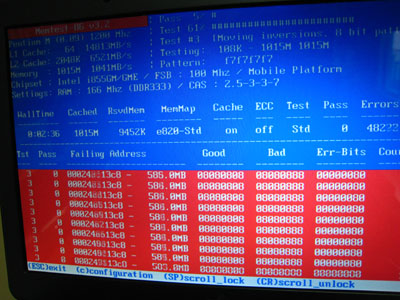
when-good-ram-goes-bad.JPG

I ran the test two more times, each with one of the 512 MB memory modules installed, and isolated it to one of the chips. I phoned Kingston, and was happy they had a lifetime warranty. The warranty process was amazingly fast and painless: no waiting on hold at all, the technician listened to me explain what I did and immediately agreed it was bad memory. A few minutes after that I had spoken to an RMA tech who took my credit card number so they could cross-ship me new RAM immediately, and as long as I return the defective RAM within ten days they won’t charge my credit card. Oh, and they also gave me their FedEx account number so I wouldn’t have to pay for return shipping. You never want RAM to go bad, but when it does happen, you can’t ask for anything more than a company that’s willing to make the replacement as fast and painless as possible.

Ok, so RAM can and does go bad. But when is the last time you heard of a coaxial cable spontaneously failing? Yesterday I was having massive trouble with my Internet connection, and I blamed it on my Netgear WPN824, which has been flaky since the day I bought it (mostly giving me random network failures that persist until I reboot it). I swapped in a D-Link DI-624, power-cycled everything including my cable modem, and assumed everything would work fine. I’ve swapped those routers in and out several time, with a Netgear router thrown in for good measure, because I can’t never seem to find one that’s stable 100% of the time. At any rate, my connection kept failing, so I looked at my SHAW cable modem with a critical eye. I have a 10 mbps downstream connection that’s been amazingly solid for the past two years (it was a bit rocky before that). Sure enough, I checked it and it wasn’t online. I’ve had a cable modem connection since 1995, so I’m very familiar with how they behave and know when something isn’t working right. I called SHAW tech support, he confirmed that it was disconnecting and re-connecting from the network, so I power cycled it one more time, and saw it lock in – and thought my problem was solved. I went back to work, only to lose my connection again. I went to my wiring area and watched the cable modem – it would lock in, all lights lit, then it would lose the network connection and everything would start blinking. And it would repeat that cycle every minute or so. What was going on?

I phoned SHAW tech support again, they said it must be a local problem with the wiring or the modem itself, and they’d have to book a service call – the best date they could do was a week down the road. I told him that if that was the case I’d be ordering DSL the next day – that rattled him, although I was mostly bluffing trying to get more immediate service (although I do still wonder about running cable and DSL together and bonding them together for a redundant and faster connection). I was suspicious of the cable modem rather than the household cable connection, because my SHAW digital phone (basically a private VOIP service) was working perfectly, as was my cable TV. My loving wife Ashley volunteered to drive to her parents house, borrow their cable modem, and bring it back so I could try a known good modem. I did, and it didn’t work. At this point I was starting to get really frustrated, and Ashley said “Did you try changing the cable that goes into the wall?”. I gave her one of those “Don’t be silly, that couldn’t possibly be the problem” looks, but having nothing to lose, I gave it a try – and it worked. What the hell…?

The cable in question is five years old, having been installed when we moved into our house. It’s plain old copper cable – how could it possibly fail? I don’t know how, but it did – and thanks to my wife, looking at a problem with a fresh set of eyes unfettered by assumptions, I’m back online.

Note to self: always check the obvious points of failure, even if you think they couldn’t possibly fail.


Remember Computers from the 1990’s?

page-7-386-prices-768788.jpg

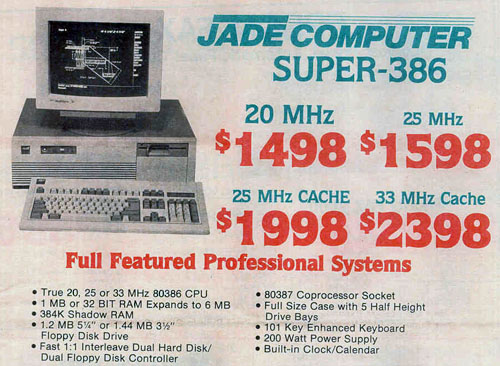
David Caulton over at Zunester (I site I often link to off Zune Thoughts) has put together a retro mish-mash of computer ads from circa 1989/1990. It’s amazing how far things have come in the past 15 years. Paying $2398 USD for a 33 mhz computer with 1 MB of RAM? Been there done that – when I was 18 years old, rather than get a loan to buy a used car like many of my friends, I took out a $3000 bank loan to buy a computer. Yeah, I was a geek. I’ll have to see if I can dig up the specs for that first machine…

The Cursed Computer Builder?

Statistically, I didn’t think this was possible. First I get the defective Shuttle SD39P2 sent to me, then the video card I ordered wouldn’t fit in said Shuttle, and when I tried it in my full-sized PC it turned out to be defective. A new SD39P2 arrived last week, so last night I sat down to put it all together – I breathed a sigh of relief when it actually booted! So imagine the frustration I felt when the Vista installation went screwy – it would get to the stage when it copied files over and expanded them, but at the expansion stage it would stick at 0% and the optical drive (a Plextor 760A) would make these rapid-fire seeking sounds. I tried four times, and it never worked. I swapped in a cheap NEC DVD burned I picked up to keep as a spare burned, and it worked like a charm. So for those keeping score this ONE project of mine has had THREE defective parts. What are the odds? Am I cursed, or have quality control standards slipped badly on PC hardware?

On the plus side, the new Shuttle SD39P2 screams with the Intel Core 2 Duo Extreme in it. It’s so fast it hurts. But it’s a good hurt. I’ll be writing an article on this rig for Digital Media Thoughts, so watch for it.

Show/Hide Paragraph Codes in Outlook 2007

Another one-hit-wonder just for the search engines and people who happen to have the same problem as I did.

reveal-codes-outlook-2007-paragraph-code.PNG

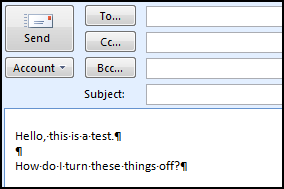
Somehow I’d managed to turn on “reveal codes” or “show paragraph marks” or whatever it’s called in Outlook 2007 (it’s hard to describe a feature that you turned on accidentally, but see the image above). Word calls it “Show Hide P” (“P” being the backwards “P” paragraph symbol that I can’t copy/paste from anything, nor can I find it in the symbols font), and it can be toggled off/on by using CNTRL+*….at least that’s what Word 2007 says, yet that keyboard shortcut didn’t work for me in Outlook 2007.

I couldn’t figure out how to turn this feature off – I’d searched online, the bundled help, and every single menu and options screen I could possibly think of. I should add that I toggled it off/on Word 2007 but that has no impact in Outlook 2007, so the two settings aren’t linked.

I was pulling out my hair, but Sue Mosher (who’s been an MVP for even longer than I have I think) responded to my posting in the Outlook newsgroup with this single line:

Try Ctrl+Shift+8 (which is what Ctrl+* really means).

And that did it. I really have no idea why Ctrl+* doesn’t really mean press the control key and the asterisk key (*) at the same time, but the solution works.

Computer Repair Tech Fraud

This is a great story – it shows that you can’t always believe the people who are the “experts” because they will usually have their own interests at heart instead of yours. I feel the same way about dentists, lawyers, and pretty much all other professionals. ๐Ÿ˜‰

Thanks to Todd for the link.

How To Install hp 2600n Under Vista

Well, wouldn’t you know it, the day after I publish this rant, HP goes and releases the Vista drivers for the 2600n (thanks to everyone that told me about it). I never knew I had that much juice, to get a response in 24 hours! ๐Ÿ˜‰ They didn’t release network-ready drivers though, so you need to do a little fiddling to get them to work. Here’s the basic steps:

  1. Download theย  HP Color LaserJet 2600n Print Driver Package
  2. Run the installer and it will put the drivers into a folder located here: C:\Program Files\ Hewlett-Packard\ LaserJet 2600 Drivers
  3. Make sure your 2600n is turned on and connected to your network
  4. Go into the admin tool for your router and figure out which IP address the printer is using. It will usually be listed under something like “Device Status” or something similar. Copy the IP address to your clipboard
  5. Go into Control Panel > Printers in Vista
  6. Click on ADD A PRINTER
  7. Click on ADD A NETWORK, WIRELESS OR BLUETOOTH PRINTER
  8. It will scan but you can click THE PRINTER I WANT ISN’T LISTED
  9. On the next screen, select ADD A PRINTER USING A TCP/IP ADDRESS OR HOSTNAME
  10. Click NEXT, then on the next screen, select the DEVICE TYPE as TCP/IP DEVICE
  11. Paste the IP address you got from your router into the HOSTNAME OR IP ADDRESS line
  12. Leave PORT NAME blank, leave the “QUERY THE PRINTER…” box checked, and click next
  13. From here on I’m going from memory: it will eventually prompt you for a driver, and you’ll click on HAVE DISK and browse to that C:\Program Files\ folder and it will show you only one file to select
  14. The install of the driver will happen, and you’ll finally be able to print!

The network management tools are still missing, so you can’t easily find out how much ink the printer has and whatnot, but at least you can print!

Outlook 2007 and Duplicate RSS Feeds

I suppose I should have known better than to use a first-generation effort from Microsoft to read RSS feeds, but I honestly thought they’d get something this simple right. They didn’t. The basis functionality is there, but it’s missing pretty much every feature you’d want if you had to process a lot of RSS feeds each day. There’s no way to have all the items marked as read when you switch to a different feed (who wants to right click > Mark All As Read). There’s no way to have headline-only items automatically fetch the Web page. And worst of all, duplicates run rampant:

outlook2007-duplicate-rss-feed-items.PNG

Why the duplicates? I believe it’s because I’m on an Exchange server. I open Outlook 2007 up on my main PC, it downloads all the RSS feeds. I then grab my laptop and open up Outlook 2007 on it – and it seems to re-download all the RSS feeds again, resulting in massive duplication. Because this is an Exchange issue, you’d think Microsoft testers would have seen it happen internally and fixed it, no? Seems not.
Ultimately I think I’m just going to have to head back to Feeddemon. For all its foibles, at least there wasn’t a problem with duplicates.

You Just Can’t Trust Microsoft Word’s Grammar Checker

I couldn’t help but get a chuckle out of this: I posted the entry about the It’s Rule and then today I was typing and look what the Word Grammar checker (manifested inside Outlook 2007) told me to to:

word-its-confused.png

It’s wrong in suggesting that I not use “it’s” since I am saying “…the next email I get it is fixed again.” In retrospect I probably should have had a comma after “get”, but I doubt that would have changed the flag.

Windows Media Player Plug-in for Firefox

Well, it’s about a year too late, but Microsoft has finally admitted that Firefox is a serious browser player in the market and if they want to claim that a majority of the Web can access Windows Media content, they have to have a real Windows Media Player plug-in for it. Now here it is. I haven’t tried it yet, but I assume it will be just as seamless as the way WMP works with IE today. [Source]

Still More Screwy Keyboard Problems

I’m completely baffled. I thought that the screwy keyboard character issue was restricted just to Firefox, but this morning I saw the same problem with Outlook 2007 when I tried to type a question mark I’d get an “ั” character. The same problem cropped up in Firefox, but in a Windows Live Messenger chat window I had no problem getting a question mark? I’m officially getting ticked off at this problem…what kind of a problem would effect keyboard input on a per-application basis rather than system wide? Restarting Outlook fixed the problem, but that doesn’t help me narrow down what’s causing it.