Windows Mail, Vista, and Blind Carbon Copy (BCC)

Here’s another one of those posts that are simply search engine fodder: I’m using Windows Mail, the replacement for Outlook Express, on my small laptop for my personal email. I find it easier to fire up one program, configured just with my personal email, than to start up Outlook and have hundreds of messages flood in from my seven (!!!) different email accounts. What surprised me tonight though was how hard it was to find something seemingly very simple: I was sending an email from Windows Mail, and I wanted to include a BCC (blind carbon copy) recipient. I started looking in the menus for the email I was working on – I looked under View, expecting to see BCC there. It wasn’t. I searched through every menu in the message itself, and even in the Windows Mail options. There wasn’t a single mention of BCC. From my email, I selected Help > View Help and typed in the term “BCC”. Not a single result. What?? I then tried “blind carbon copy”, a term that most people will not understand (average users know it only as BCC) and found 30 results. The first five included help topics on eliminating duplicate files, copy and paste from a remote computer, rip music FAQ, copy a file or folder, and copy information between files. Absolutely nothing on BCC.

I then tried Google and after a bit of searching, found the solution: with an email message open, click on View then All Headers and the BCC field will magically appear. All Headers? That’s completely, totally, and utterly non-intuitive. Who the hell knows that headers relates to BCC other than SMTP geeks more hardcore than I? Not cool at all – Vista, you lose a point in my books for this. The Windows Mail team needs to give their head a shake and change that to “View BCC”.
Promises, Promises

Another week has gone by, and it looks like I’m still going to be without the gear I need to get up and running. Velocity Micro was supposed to ship out a replacement PC (this would be the third) on Monday AM to arrive in time for Wednesday. On Tuesday I emailed them and they said they’d have it going out the door on Wednesday for arrival on Thursday or Friday. Then when I emailed them on Wednesday to ask if it was shipped, they said they were having trouble with the machine and they would try to fix the problem and get it out to me for delivery by Friday. Today I emailed them and the machine is now finished and has been passed off to their shipping department, but that means it will only get picked up today in the best-case scenario – so I’m looking at Monday or Tuesday at best. It’s sad that on the 22nd of December I was supposed to setting up this computer.

XFX, the video card company that I’m waiting on a card from, said on the 24th of January that my replacement card would be going out “soon”. Then a few days later they admitted to me that they don’t even have the 7600GS in stock – the video card with passive cooling that I ordered specifically because it was silent. They said they’d ship me a 7800GT, a card with a noisy-ass fan. No good I said, I need a passively cooled, silent card. They said ok, we’ll ship you a 7800GT with a fan. Yes, they suggested that same card that I already refused. I then asked for a 7950 GT, the next passively cooled card they offer. It’s a more expensive card, but since they can’t replace the card I sent them, it seems fair they should give me whatever card matches the last card the closest. They’re checking with their inventory department to see if they have one of those cards in stock – so at least they didn’t say no right off the bat.

Another weekend without being able to set up my office properly. All is not wasted though, I have finish setting up our TV room in anticipation of the UFC 67 fight on Saturday night. We assembled the Toshiba TV stand the other night (more or less the right way ;-)), so now it’s a matter of pumping it all through the sound system so we can watch the first UFC fight to be broadcast in high-definition. It’s gonna’ be sweet on that big 72″ Toshiba TV!

Dell Laser Printer for $19? No, Apparently Not

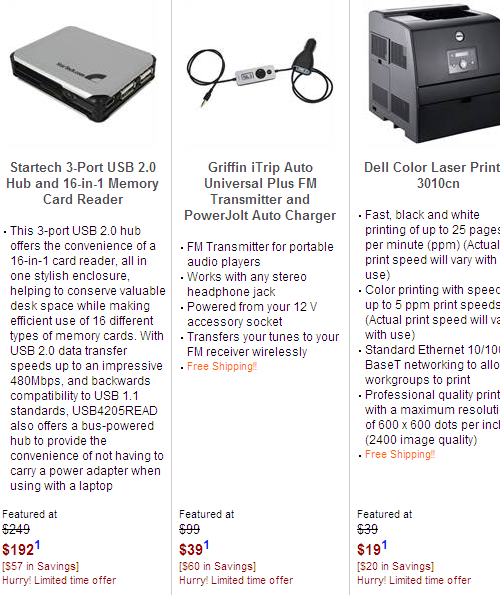
I’ve been checking the Dell business Web site every morning for the past week or so, because they’ve been running their “Days of Deals” promotion. They’ve had some great deals – I picked up a 250 GB Iomega external hard drive for $89 with free shipping – but this morning’s deal took the cake: a colour laser printer, the 3010cn, for $19? It was about 5:50am when I looked at this, bleary-eyed, so I had to blink a few times. When I saw that Dell was charging $192 for a hub/memory card reader, normally priced at $249, I figured it out: some bumbling HTML intern had the prices reversed. I figured I’d try to buy one anyway (I already have a colour laser, but for $19…), yet upon clicking on the Customize link for the printer I was shown a price of $299. Drat – this wasn’t one of those scenarios where you could actually order the product. And they must have realized their error quickly, because now when you look at the page the printer is $299 – which is an excellent price for a network-ready colour laser printer (I paid $379 for my HP 2600n, current price is $449).

dell-prices-feb1.png

Cleaning Up The Back-Room Infrastructure

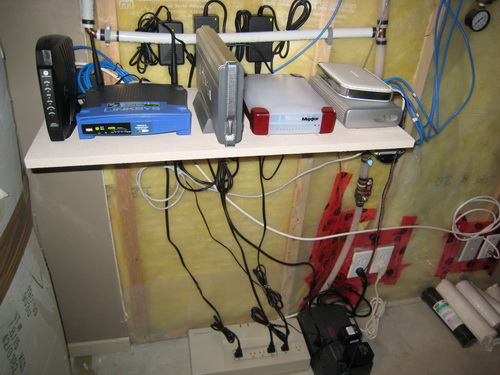
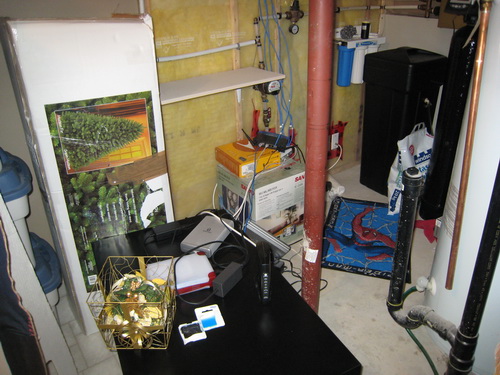
As much as I try to keep my office clean and organized, I’ve tented to ignore the networking equipment that is my lifeblood, which is something I remedied yesterday. When we had this house built, we ran CAT5 cables from all around the house (there’s one drop in almost every room) down into the basement to emerge near the electrical panel. I’m not talented enough to create a patch panel or anything that elegant, so instead I just had a bunch of cables going into a bunch of devices, all perched precariously on top of various boxes. Here’s what that looked like:

wiring-backroom-before.jpg

As you can see, it’s quite the mess (dig the Spider Man mat though!). This isn’t a REAL “before” picture though, because I had already put up the shelf. We had some left over wood from building our garage “hold lots of empty cardboard boxes” shelves, so I had my father in law cut me a shelf from the wood (I have no capability to cut wood – I don’t even own a saw). After spending a good 30 minutes un-tangling cables and setting everything back up again, I now have a much more tidy solution.

wiring-backroom-after.jpg

From left to right on the top shelf, that’s my Motorola Cable modem (connected to Shaw’s Extreme server running at 10 Mbps downstream), a basic Linksys 802.11g router (waiting for a D-Link Draft N router to show up), a 400 GB Maxtor NAS drive, a 160 GB drive connected to the NAS drive, then a Netgear Gigabit router on top of a 250 GB drive also connected into the NAS. Below that I have two different UPS units, each sharing a bit of the load. If I lose power I figured I’d have ‘Net access for a few hours at least. This new setup will make things easier for me to swap out gear, which will definitely be happening this year – by the end of the year I expect to have a final 802.11n router in there, and some form of Windows Home Server (likely the HP product). This isn’t a real “after” photo either: after I took this photo I ended up putting the UPS units up on the black table, positioned below this shelf, to get them off the ground in case of a water leak. Clearly I lack the concept of “before” and “after” photos. But at least I have some clean cabling!

Oh You’ve Got To Be Kidding Me…

Just when I thought I was going to have a week where nothing went wrong with my technology, I discover that the headphone/audio out jack on my N6220 Fujitsu laptop doesn’t work properly. When I plugged in a pair of Creative Gigaworks T20 speakers to the laptop, the internal speakers didn’t cut out – meaning I have audio coming out of both the laptop and the Creative speakers. I’ve never seen a laptop that did that by design, and after connecting a pair of headphones and hearing crackling, popping, and having the audio cut in and out (both on the external and internal speakers) the port has to be defective. And this is on the laptop that I had a friend purchase in the USA and ship to me because Fujitsu Canada only carries neutured, lame version of each laptop series (slower CPU, less RAM, etc.). So it might get interesting getting this thing repaired…I’m not even sure it’s still under warranty! <gulp>

Velocity Micro: Round 2 K.O.

velocity-micro-round2.jpg

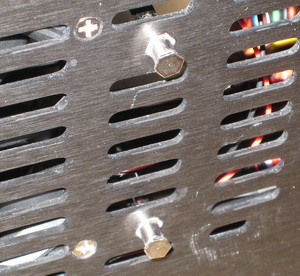
The replacement Velocity Micro machine arrived yesterday, and today I opened it up and saw something a bit strange: the hard drive cage is a bit loose, having some vertical play because one side of the “bolts” on the bottom can move up and down. This is the same hard drive cage that tore completely free last time and caused all sorts of problems. Fearing the worst, I plugged it in, connected all the cables, pressed power…and it would’t boot up properly. I have power, because it does start, but it never posts – nothing appears on the screen. The video card sticks in high fan-RPM mode, as if there’s a component failure. I spent about 15 minutes going over all the cabling, looking for anything that might have become unplugged, but was unable to find anything worthwhile. Everything seems connected ok, but it won’t post.

I don’t have the time or desire to start swapping out components to figure out which one failed, so I contacted Velocity Micro and they’re shipping me a third (!!!) machine in the hopes that this one will work. I’m getting this machine for free, so I can’t complain too much, but I could only imagine how ticked off I’d be if I had paid $2000 (or whatever it costs) for this system and been sent two D.O.A. systems. Let’s just say I’m not too thrilled with the quality control at Velocity Micro…and this time I can’t even blame DHL for trashing the computer, because UPS delivered it! They dropped it off on my doorstep, apparently not requiring a signature for an expensive computer (which is bizarre unto itself).

I’m still waiting for my replacement XFX video card, so my dreams of having my office up and running properly by the end of the weekend are once again dashed. Curses!

Importing .PRF Files Into Outlook 2007 in Vista

If you have a hosted Exchange account, you’ve probably dealt with the PRF file: it’s an automated setup file that you just double-click and it configures Outlook for you. Totally slick. But in Outlook 2007, Microsoft broke changed something and you can no longer easily import the PRF settings. There’s a way to do it under Windows Vista, but it’s slightly more involved. The instructions below are adapted from my hosted Exchange provider 4Smartphone.

  1. Download the PRF file from your hosted Exchange provider and put it on your desktop.
  2. Click Start, and then click Run. On Vista just type Run and his Enter. This will open Run command box.
  3. In Open field, type the following and don’t forget the quotes. You may want to copy/paste this into the RUN box and just change the variables: outlook.exe /importprf “C:\Users\USERNAME\Desktop\FILENAME.prf”
  4. Let Outlook 2007 do it’s thing – you’ll have to enter your username and password as part of the setup process.

And that’s it!

I Couldn’t Resist Any Longer…First 2407WFP Set Up

dell-2407wfp-setup.jpg

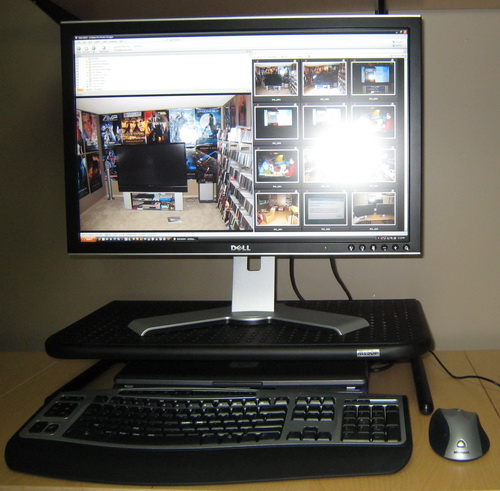
I’m still waiting for the Velocity Micro PC, and the XFX video card, so I haven’t set up my three 24″ LCD monitors yet…but today I just got sick of typing on my laptop (and having the twin hard drives heat up my hands) so I set up one monitor with the laptop. It’s…BIG. And very nice – even over VGA (which surprises me a little).

Microsoft Timeline of Operating System & Office Suite Launches

This is one of those things I’m posting for the sake of having it archived – I found it on this USA Today article about Vista.

MICROSOFT TIMELINE
Date Event
Aug. 12, 1981 IBM introduces its personal computer with Microsoft’s 16-bit operating system, MS-DOS 1.0
Aug. 1, 1989 Office suite launched
May 22, 1990 Windows 3.0 launched
Aug. 24, 1995 Windows 95 launched
June 25, 1998 Windows 98 launched
Feb. 17, 2000 Windows 2000 launched
May 31, 2001 Office XP launched
Oct. 25, 2001 Windows XP launched
Nov. 30, 2006 Windows Vista made available to businesses
Jan. 30, 2007 Windows Vista made available to consumers

Free Windows & Office Programs from Microsoft

free-microsoft-software.gif
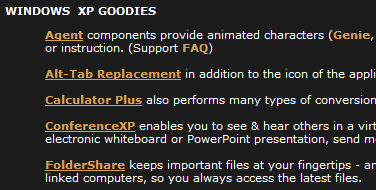
A fellow by the name of Blake Handler seems to have a lot of time on his hands – he created a directory linking to over 150 Windows and Office programs available from Microsoft. Some of the free goodies include:

  • Alt-Tab Replacement in addition to the icon of the application window you are switching to, you see a preview of the page.
  • Calculator Plus also performs many types of conversions.
  • ConferenceXP enables you to see & hear others in a virtual collaborative space, called a venue. You collaborate on an electronic whiteboard or PowerPoint presentation, send messages and more.
  • FolderShare keeps important files at your fingertips – anywhere. All file changes are automatically synchronized between linked computers, so you always access the latest files.
  • GroupBar desktop tool offers enhanced window management capabilities in a taskbar-like setting. Through simple drag-and-drop operations on window tiles within the bar, users can create lightweight, transient grouping relationships that allow them to perform certain higher-level window layout functions on multiple windows at once.

Check out the site for more.